
Why Use Global Properties for Notifications?
Hard-coding email addresses directly into notification workflows creates several issues. Instead, use Global Properties to store recipient lists in a centralized, easily maintainable way.
Benefits of Using Global Properties for Email Distribution Lists
Centralized Management
- All recipient addresses are stored in one location.
- Updates propagate automatically across all workflows.
Environment-Specific Control
- Configure different recipient lists for development, staging, and production without changing workflow logic.
Improved Scalability
- Adding or removing recipients is as simple as updating the property.
How to Implement Global Properties in Notifications (in Solution Manager)
First create the Global Property for alerts by navigating to the Library and clicking Global Properties.
Click Add.
Enter the Name of the Global Property.
Enter the email address(es) in the Value field. Separate the email addresses by a semicolon.
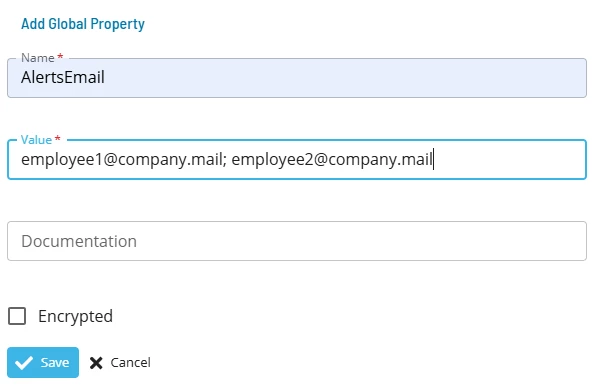
Click Save.
Now, navigate to the Library and click Notification Triggers.
Click Add.
Click the plus sign for Email.
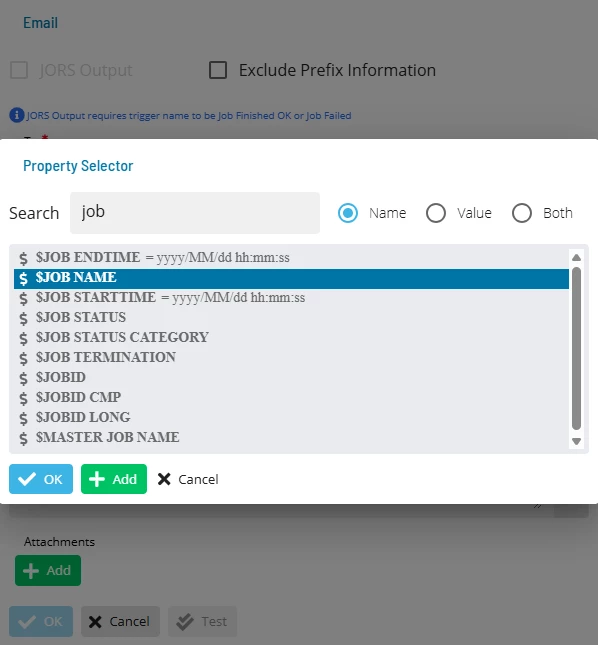
Use the magic wand in the To field to search for your alerts Global Property.
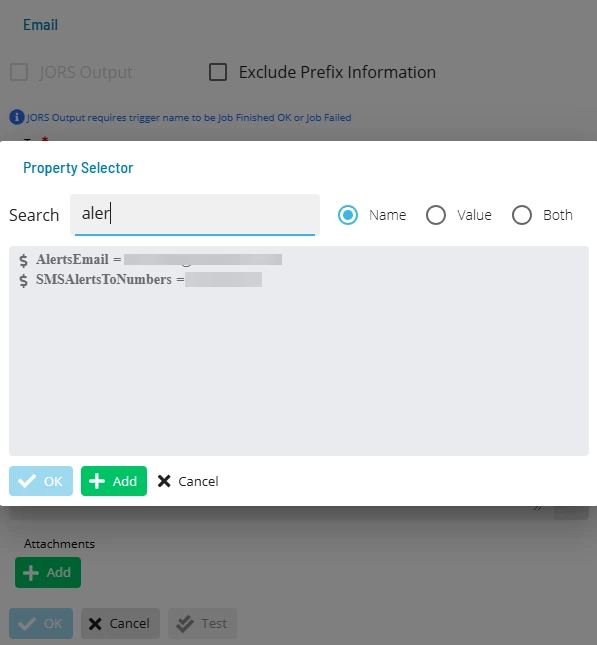
Select it and click OK.
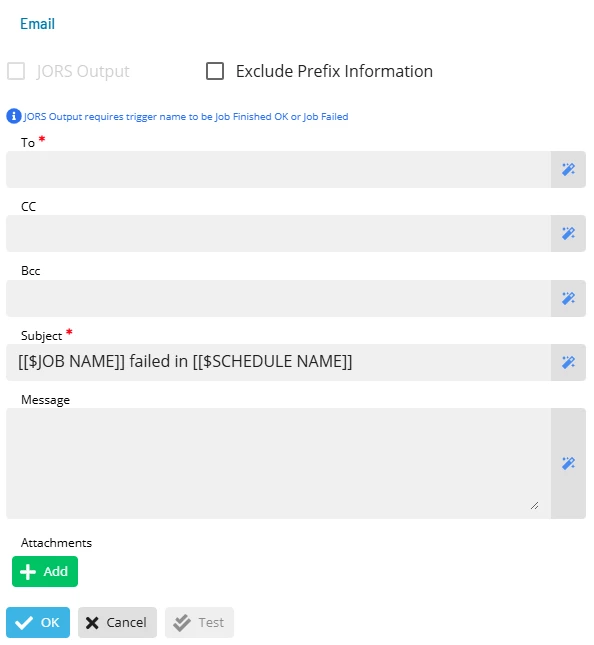
Enter the Subject and click OK.
Example: To provide the recipient with valuable information about the notification, use Global Properties to add values to the subject line. The example below will provide information about a job failure: